Remote work is no longer a small trend. Major workplace research shows that hybrid and remote work are now part of how many organizations operate, and Gallup reports that most remote-capable employees want a hybrid arrangement rather than a fully office-based one. Microsoft’s Work Trend Index also draws on surveys across 31,000 people in 31 countries, which shows how global and widespread this shift has become. In that kind of environment, the right business tools are not a luxury. They are the backbone of communication, coordination, documentation, and trust.
For remote teams, the challenge is not just staying in touch. It is keeping work visible, decisions documented, files easy to find, and people aligned across different time zones. Gallup has also reported a recent decline in global employee engagement, which makes clear structure and strong team systems even more important. The best remote tool stack reduces confusion, saves time, and helps people do meaningful work without feeling scattered.
Table of Contents
Why Remote Teams Need the Right Business Tools
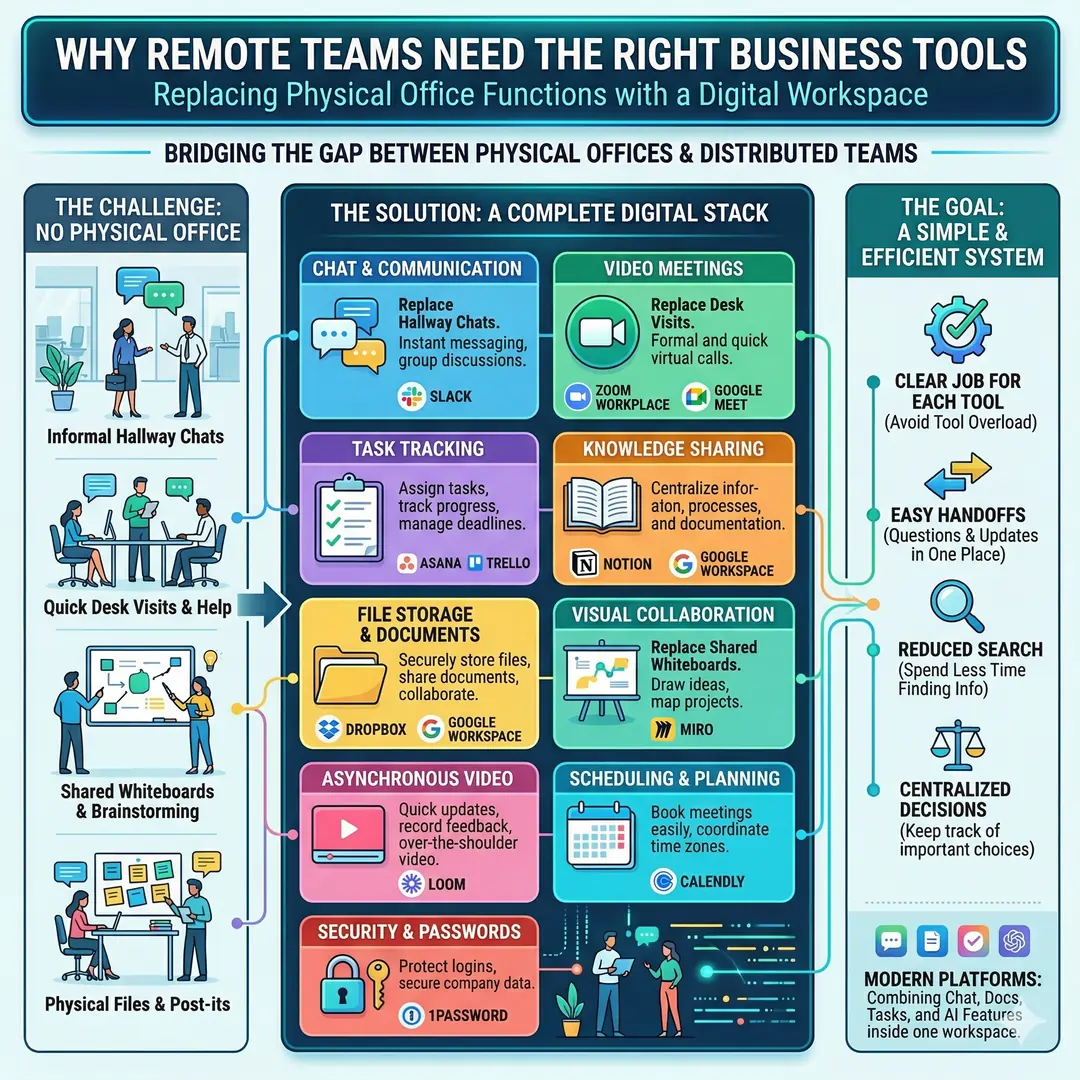
A remote team does not share a physical office, so the team needs digital systems that replace the everyday things an office normally provides. In a traditional workplace, people pick up information from hallway conversations, quick desk visits, or shared whiteboards. Remote teams need tools that make those moments visible in digital form. That means a strong setup for chat, video meetings, task tracking, knowledge sharing, file storage, scheduling, and security. Tools from Google Workspace, Zoom Workplace, Slack, Asana, Notion, Trello, Miro, Dropbox, Calendly, Loom, and 1Password all map neatly to those needs.
The real goal is not to collect the most tools. The goal is to build a simple system where each tool has a clear job. A good remote stack should make it easy to ask questions, hand off tasks, share updates, and store decisions in one place so people do not keep searching through old messages. That is also why many modern platforms now combine chat, docs, tasks, and AI features into a single workspace.
The Core Categories Every Remote Team Should Have
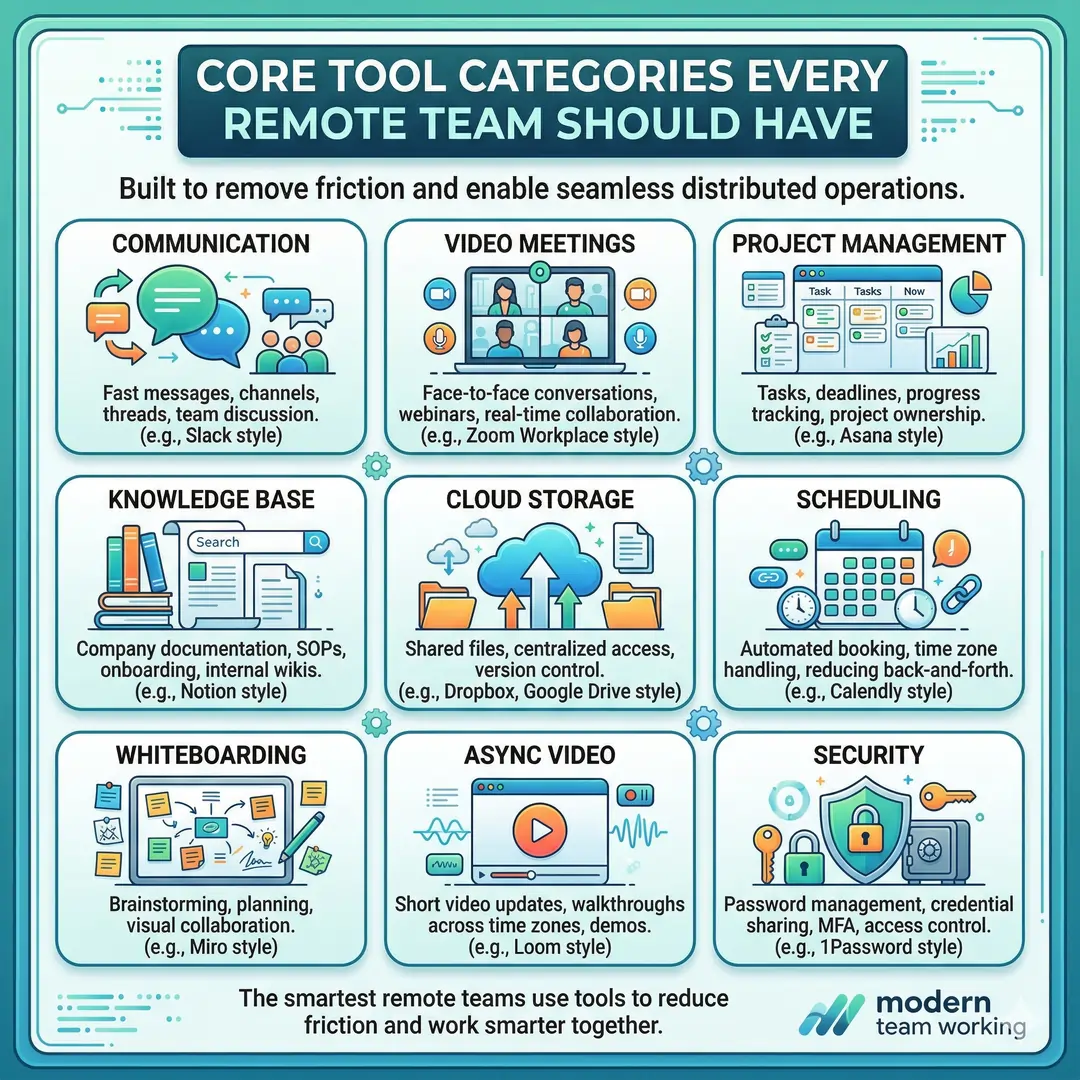
At a minimum, a remote team usually needs these categories of tools:
- Communication tools for fast messages and team discussion
- Video meeting tools for face-to-face conversations
- Project management tools for tasks, deadlines, and ownership
- Knowledge base tools for company docs and standard processes
- Cloud storage tools for shared files and version control
- Scheduling tools to reduce back-and-forth when booking meetings
- Whiteboarding tools for brainstorming and planning
- Async video tools for updates and walkthroughs across time zones
- Security tools for passwords, secrets, and account access
That list looks long, but each category solves a specific problem. The smartest remote teams do not use tools for decoration. They use them to remove friction. Google Workspace, Zoom Workplace, Slack, Notion, Asana, Dropbox, Miro, Calendly, Loom, and 1Password are all designed around that idea in different ways.
Comparison Table: The Most Important Remote Team Tool Categories
| Category | Main purpose | What it solves | Example tools | Why it matters for remote teams |
|---|---|---|---|---|
| Team communication | Fast collaboration and day-to-day discussion | Replaces hallway updates, short office chats, and scattered email threads | Slack, Google Chat, Zoom Chat | Keeps conversations organized in channels, integrates with other work tools, and reduces lost context |
| Video meetings | Live face-to-face calls | Handles planning sessions, client calls, interviews, and team check-ins | Zoom, Google Meet, Microsoft Teams via scheduling integrations | Gives teams a clear space for real-time discussion and screen sharing |
| Project management | Tasks, deadlines, ownership, and status | Prevents missed work and unclear responsibility | Asana, Trello, monday.com, Todoist | Makes work visible and easier to track across locations and time zones |
| Knowledge management | Store and find company knowledge | Reduces repeated questions and tribal knowledge | Notion, Confluence | Gives teams one place for docs, SOPs, wikis, and onboarding material |
| File storage and sharing | Share documents securely | Stops file chaos and version confusion | Google Drive, Dropbox | Supports collaboration on files, sharing, and permissions from anywhere |
| Scheduling | Book meetings without endless coordination | Cuts down on email ping pong and timezone confusion | Calendly | Simplifies booking and adds meeting links automatically |
| Whiteboarding | Brainstorm visually | Helps teams map ideas, flows, and plans in real time or async | Miro, Zoom Whiteboard | Makes ideation easier for remote workshops and planning sessions |
| Async video | Record updates and explanations | Replaces unnecessary meetings and supports global teams | Loom | Helps people explain ideas clearly when they are in different time zones |
| Security and access | Protect passwords and credentials | Lowers risk from weak or shared passwords | 1Password | Secures logins, secrets, and team access in a distributed environment |
1. Communication Tools That Keep Everyone in Sync
For remote teams, communication is the first layer of productivity. If people cannot quickly ask questions, share updates, or clarify expectations, everything else slows down. Slack is built around that need with channels, canvas, lists, workflow automation, and file sharing. Google Chat connects naturally with Gmail, Calendar, Drive, and Meet. Zoom Chat is positioned as a hub that can move directly into meetings, docs, and whiteboards without forcing people to switch constantly between apps.
The best way to use a chat tool is not to treat it like a dumping ground. It should have structure. A remote team can use channels for announcements, project updates, support questions, social chat, and leadership communication. That makes discussions easier to find later and lowers the chance that important information gets buried in private messages. Slack’s feature set and Google Chat’s integration model both support that kind of organized communication.
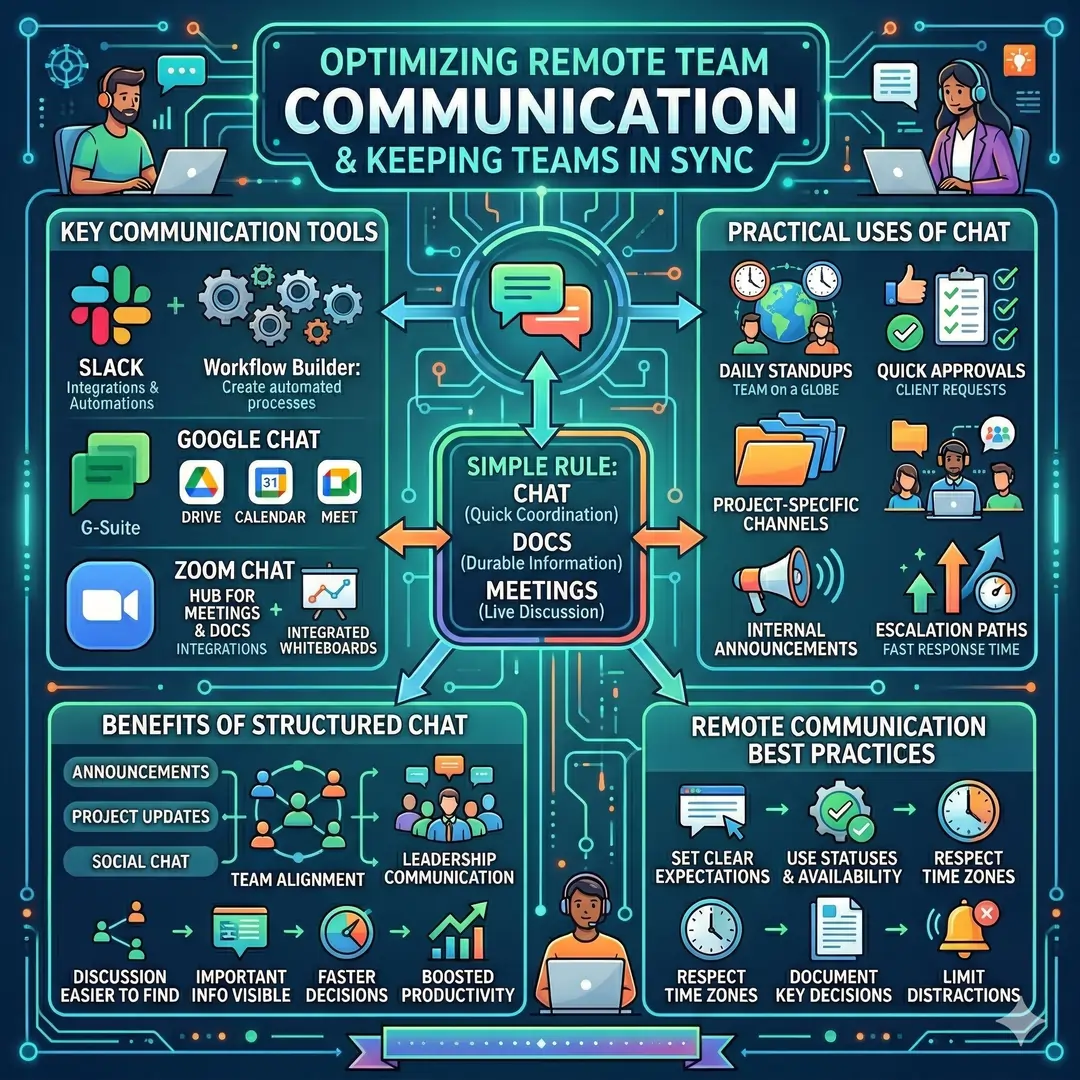
Practical uses of chat tools
- Daily standups when the team is spread across time zones
- Quick approvals for content, design, or client requests
- Project-specific channels for focused discussion
- Internal announcements so everyone sees the same update
- Escalation paths when something is urgent and needs a fast response
For many teams, the ideal rule is simple. Chat for quick coordination, docs for durable information, and meetings for discussion that truly need live conversation. Slack’s workflow builder and Google Chat’s integrations make that split easier to maintain.
2. Video Meeting Tools for Real-Time Human Connection
Even the best chat setup cannot replace every live conversation. Remote teams still need time for strategy, interviews, feedback, onboarding, and client presentations. Zoom Workplace now includes Docs, Whiteboard, Clips, Hub, Video Management, and Tasks, which shows how modern meeting platforms are expanding beyond plain video calls. Google Workspace also includes Meet alongside Gmail, Calendar, Chat, Drive, Docs, Sheets, Slides, Forms, and Sites.
The important thing is to use meetings carefully. Good remote teams do not meet just because a meeting is easy to schedule. They meet when discussion, disagreement, or decision making will be faster in person than in writing. That is where a platform such as Zoom or Google Meet becomes valuable. A live screen share can resolve confusion in minutes that might otherwise take a long email chain.
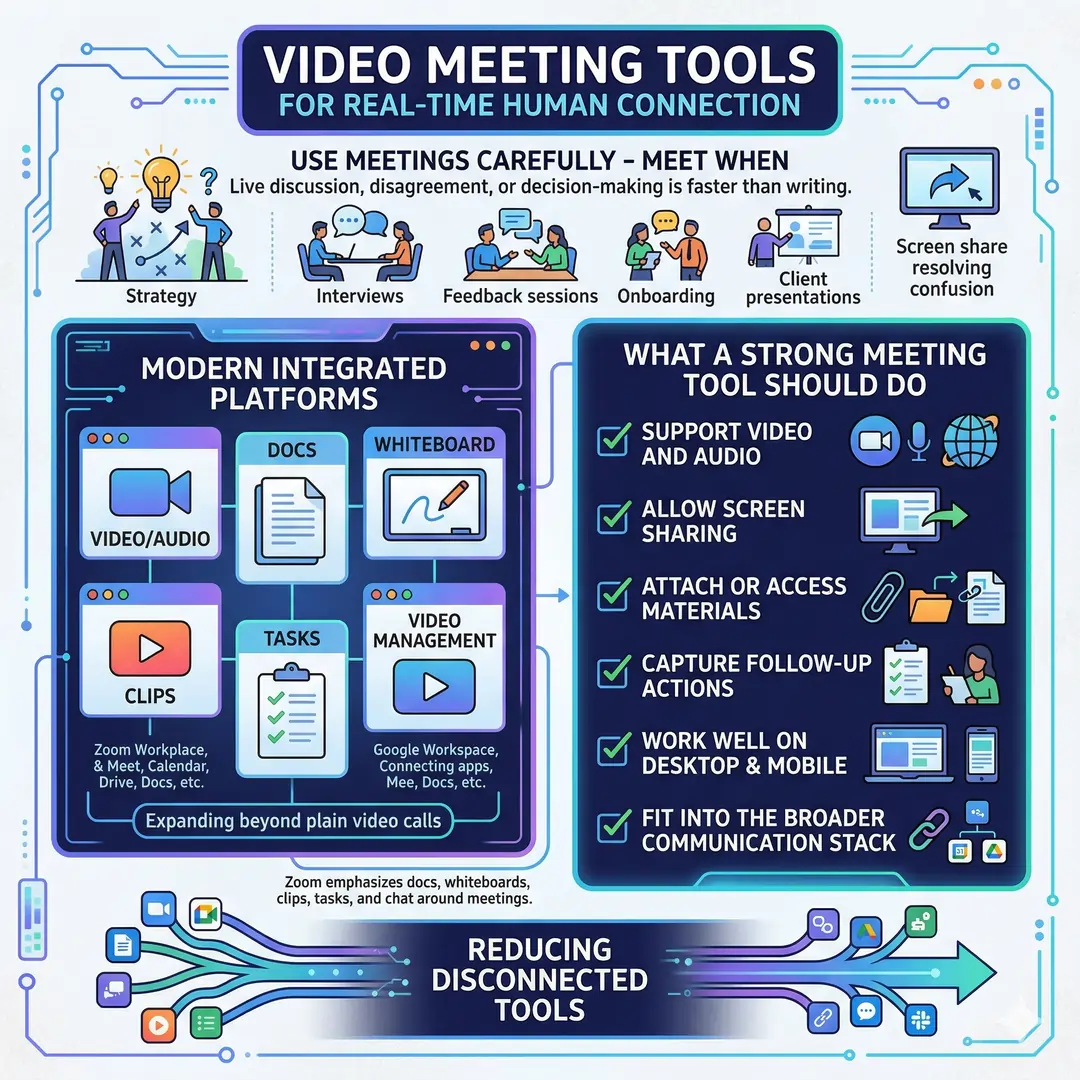
What a strong meeting tool should do
- Support video and audio
- Allow screen sharing
- Provide a way to attach or access meeting materials
- Make follow-up actions easy to capture
- Works well on desktop and mobile
- Fit into the broader communication stack
Zoom’s collaboration pages emphasize docs, whiteboards, clips, tasks, and chat around meetings, which is useful for remote teams that want fewer disconnected tools.
3. Project Management Tools That Turn Talk Into Action
Communication creates alignment. Project management turns alignment into execution. That is why remote teams need a reliable system for tasks, owners, due dates, and progress. Asana positions itself as a way for remote and distributed teams to stay focused on goals, projects, and tasks. Trello emphasizes boards, lists, and cards, which are especially helpful for visual planning. Monday.com focuses on AI-powered planning, execution, and delivery. Todoist keeps the emphasis on shared tasks, projects, and deadlines in a simple format.
The right project tool should answer a few basic questions instantly. What is being worked on? Who owns it? When is it due? What is blocked? What changed since yesterday? If a tool cannot answer those questions clearly, the team will go back to asking in chat, which creates duplication and confusion. Asana, Trello, monday.com, and Todoist all address that problem in their own style.
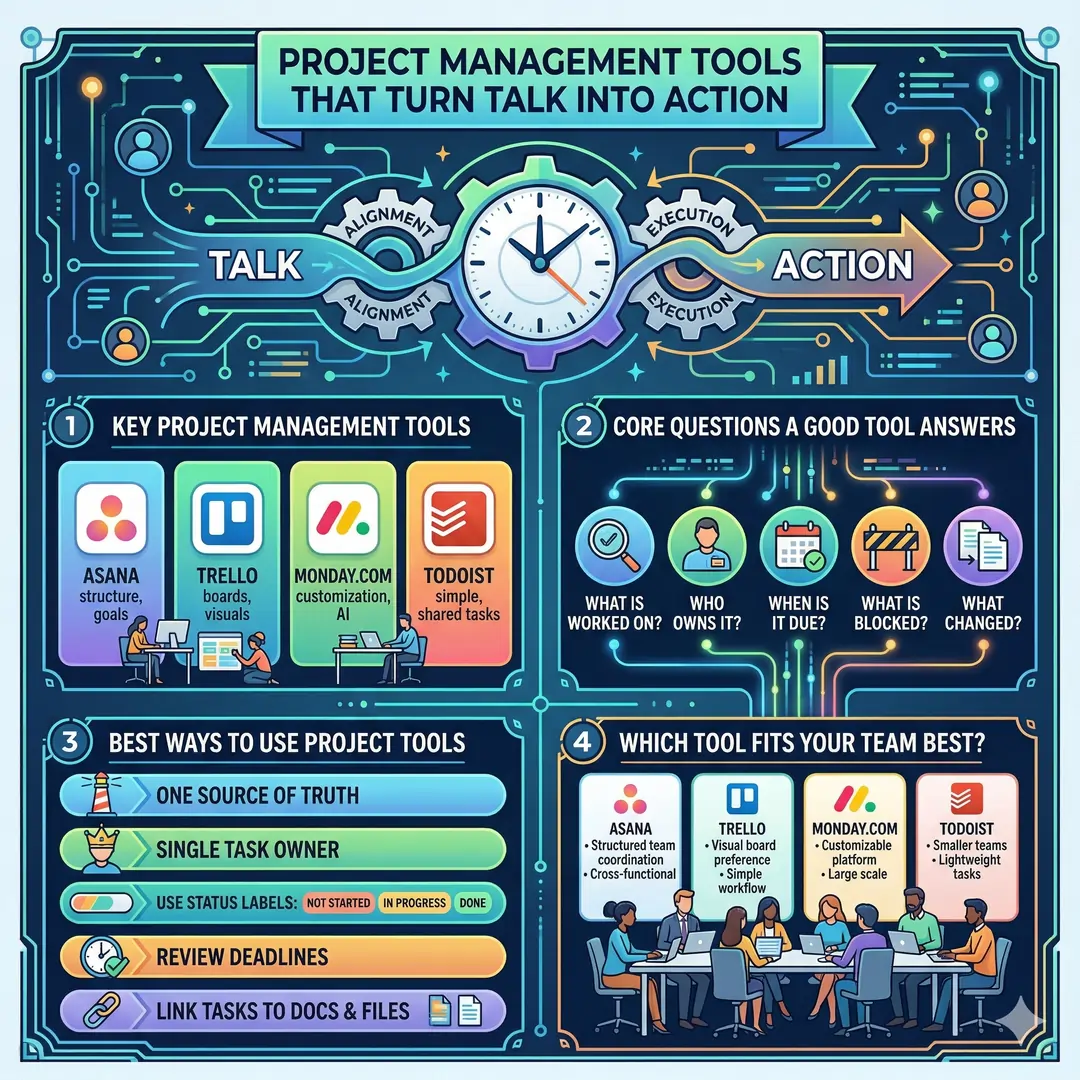
Best ways to use project tools
- Keep one source of truth for each project
- Assign a single owner to every important task
- Use status labels like not started, in progress, blocked, and done
- Review deadlines regularly
- Link tasks to documents, files, and meeting notes
When each style works best
- Asana is strong for structured team coordination and cross-functional work.
- Trello is great when your team likes a visual board and simple workflow.
- Monday.com fits teams that want a more customizable work platform.
- Todoist works well for smaller teams or people who prefer a lightweight task system.
4. Knowledge Base Tools That Keep Tribal Knowledge from Disappearing
Remote teams rely more on written knowledge than office teams do. When someone cannot walk over to a colleague’s desk, the team needs a place where processes, decisions, onboarding steps, and common answers already live. Notion describes itself as an AI workspace with docs, projects, a knowledge base, integrations, and enterprise search. Confluence presents itself as a team workspace and knowledge base that helps teams create, share, and find information.
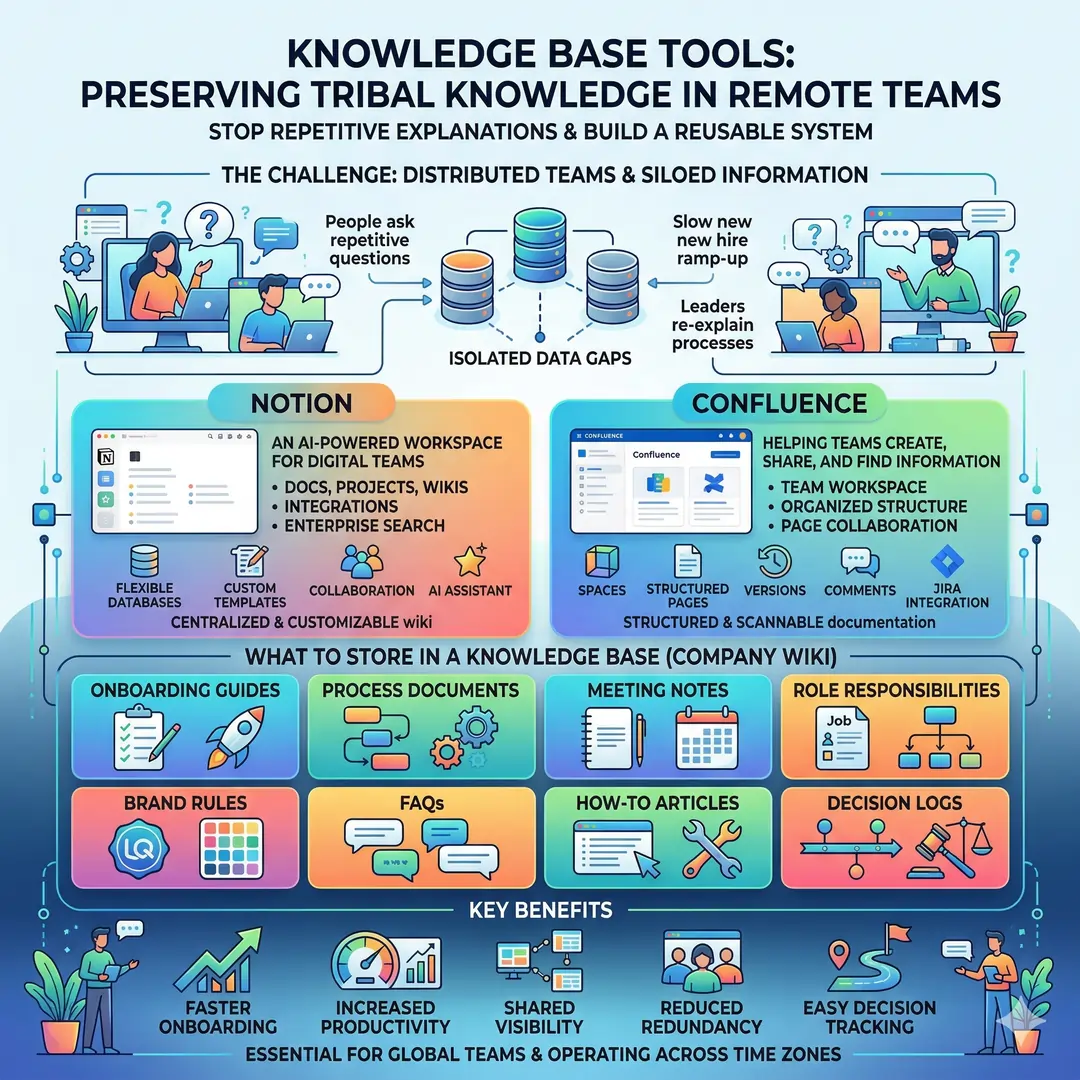
This category matters because remote work without documentation becomes repetitive very quickly. People ask the same questions again and again. New hires take longer to become productive. Leaders end up explaining the same process in multiple meetings. A strong knowledge base turns those repeated explanations into a reusable system.
What to store in a knowledge base
- Onboarding guides
- Process documents
- Meeting notes
- Role responsibilities
- Brand rules
- FAQs
- How-to articles
- Decision logs
Notion and Confluence both support the idea of a shared company wiki or internal knowledge base, which is especially useful for distributed teams that operate across countries or time zones.
5. File Storage and Sharing Tools That Prevent Version Chaos
Files are one of the fastest ways for remote work to become messy. Without a good cloud storage system, people end up sending attachments back and forth, editing the wrong file version, or losing track of which document is final. Google Drive and Dropbox both address that problem directly. Google Drive emphasizes secure cloud storage and collaboration. Dropbox highlights real-time syncing, file sharing, and large file transfers.
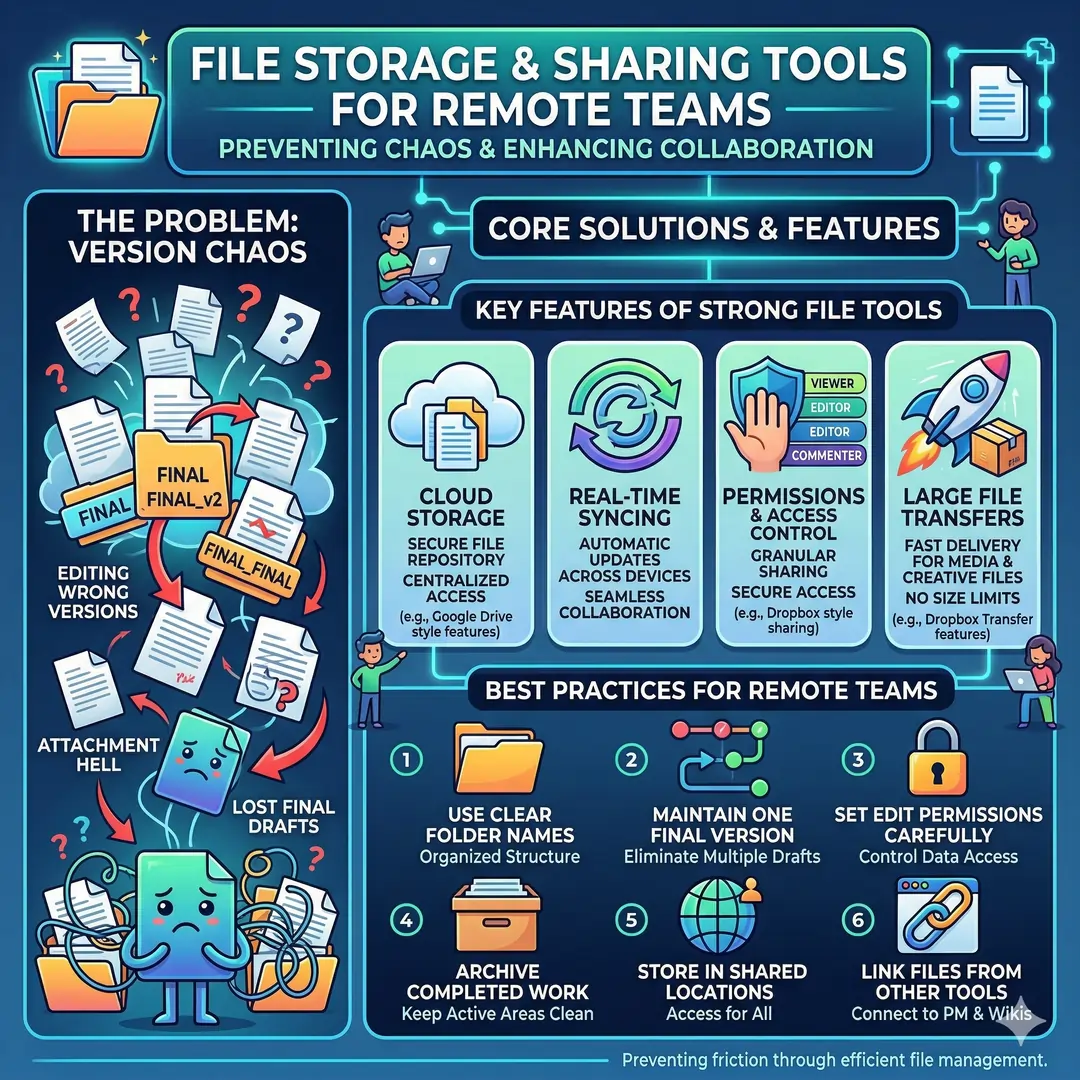
A strong file tool should make it easy to share the right document with the right people at the right permission level. It should also help teams keep large creative files, contracts, project folders, and reference materials organized. Dropbox’s sharing and transfer features are particularly useful for teams moving large media files, while Google Drive is tightly connected to the wider Google Workspace ecosystem.
File management habits that help remote teams
- Use clear folder names
- Keep one final version of every document
- Set edit permissions carefully
- Archive completed work
- Store important files in shared locations, not personal drives
- Link files from project tools and knowledge bases
6. Scheduling Tools That Save Time and Reduce Friction
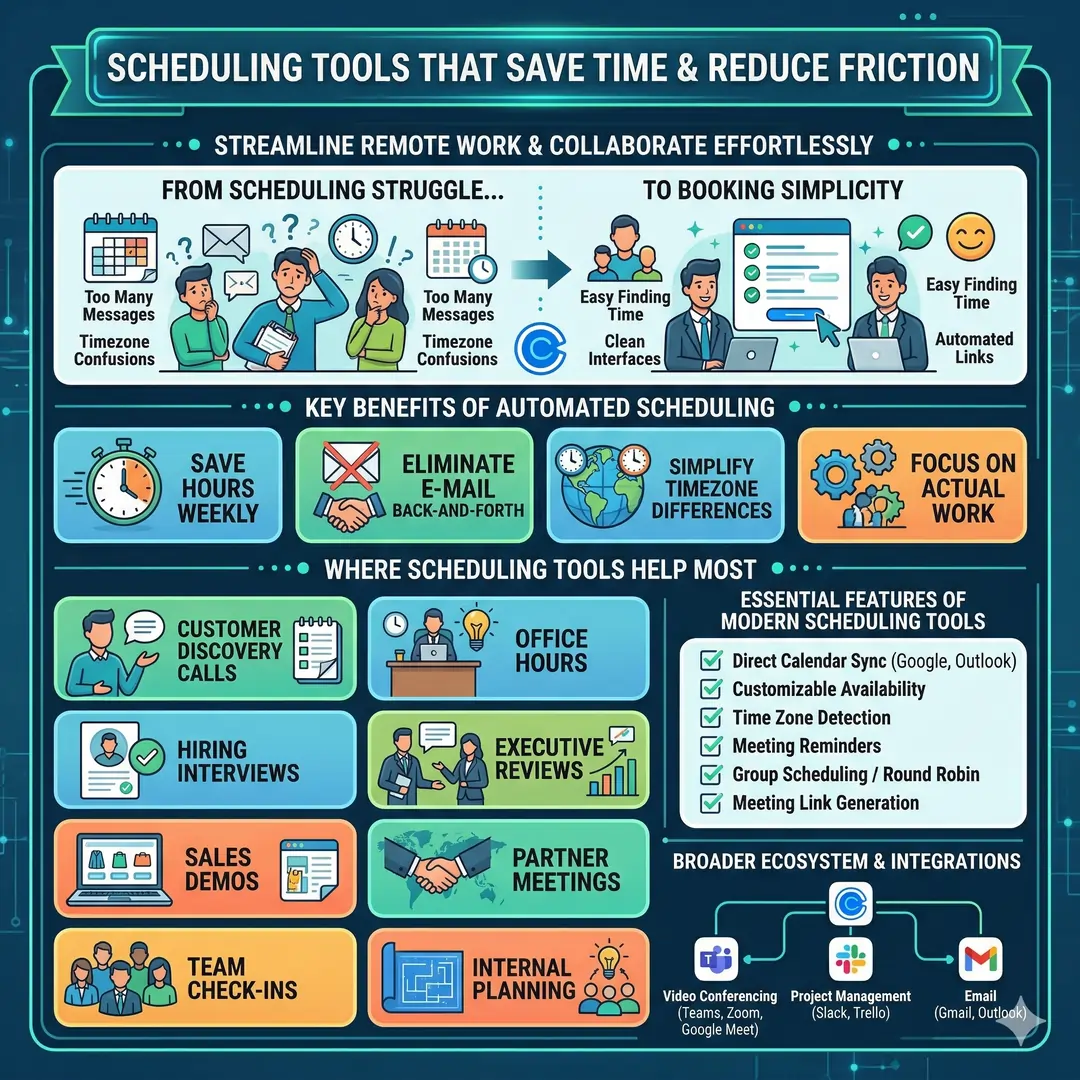
One of the most annoying parts of remote work is scheduling. When people live in different time zones, booking a simple call can take too many messages. Calendly is built to make that easier by simplifying the process of finding time and automatically creating meeting links and details through integrations.
Scheduling tools matter for sales calls, interviews, customer support, onboarding, and internal planning. A good scheduling system cuts down the administrative work that surrounds every meeting. That frees people to spend more time on the actual work.
Where scheduling tools help most
- Customer discovery calls
- Hiring interviews
- Sales demos
- Team check-ins
- Office hours
- Executive reviews
- Partner meetings
Calendly also integrates with video conferencing platforms like Microsoft Teams, which makes it useful in broader collaboration stacks.
7. Whiteboarding Tools for Brainstorming and Planning
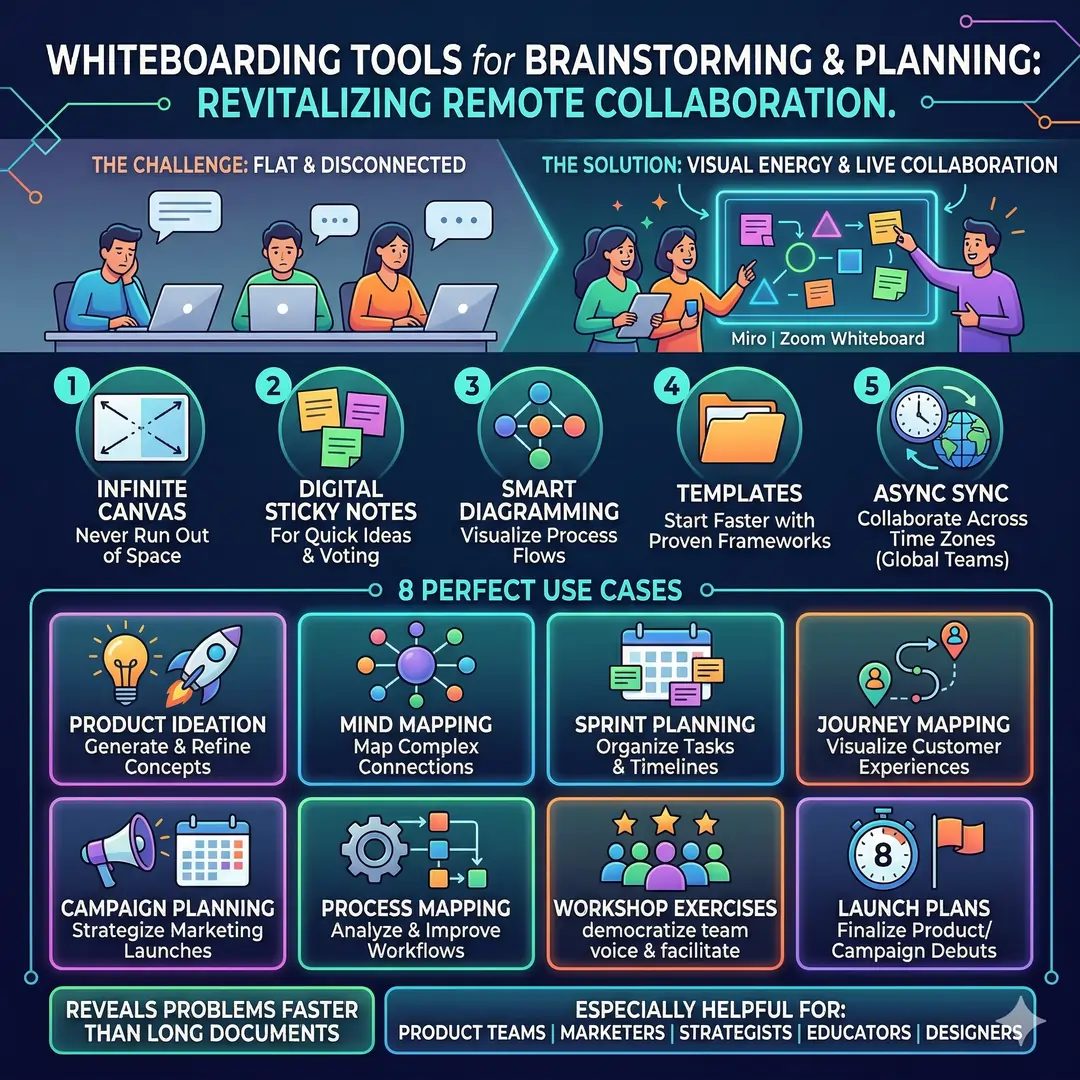
Remote brainstorming can become flat if teams only use chat or email. Whiteboarding tools bring back the visual energy of sticky notes, flowcharts, and live collaboration. Miro describes its online whiteboard as a place to brainstorm, facilitate meetings, run workshops, and collaborate both asynchronously and in real time. Zoom Whiteboard offers similar visual collaboration with templates and design tools.
These tools are especially helpful for product teams, marketers, designers, educators, and strategists. They are also useful when a team needs to map customer journeys, content plans, process flows, or launch plans. A whiteboard can often reveal a problem faster than a long document can.
Examples of good whiteboard use
- Sprint planning
- Mind mapping
- Journey mapping
- Campaign planning
- Workshop exercises
- Product ideation
- Process mapping
Miro also emphasizes collaboration across time zones, which is especially useful for global teams that cannot always gather live.
8. Async Video Tools for Global and Cross-Time-Zone Teams
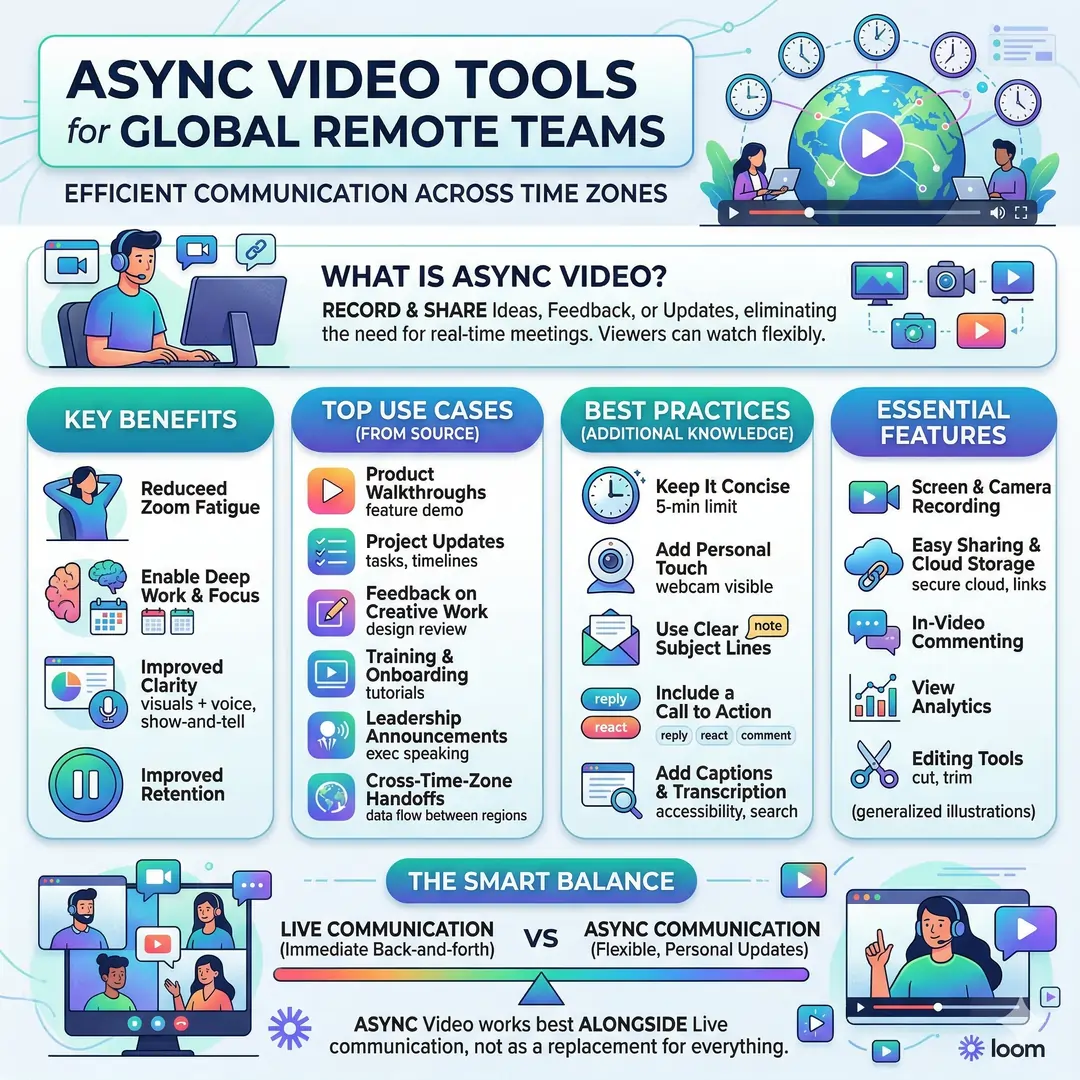
For remote teams spread across the world, not everything should happen live. Asynchronous communication is one of the most powerful habits a remote team can build. Loom is designed for this purpose and positions itself as a way to record screen, webcam, or both so people can share ideas, provide feedback, and document updates without scheduling a meeting.
Async video is especially useful when a topic needs explanation but not a real-time back-and-forth. A product manager can walk through a feature update. A designer can explain a mockup. A manager can give feedback on a draft. A team lead can share a weekly update that people can watch at their convenience. That saves time and also gives the receiver something more personal than a text note.
Good use cases for async video
- Product walkthroughs
- Project updates
- Feedback on creative work
- Training and onboarding
- Leadership announcements
- Cross-time-zone handoffs
Loom’s materials also note that async communication works best alongside live communication, not as a replacement for everything. That is a smart balance for remote teams.
9. Security Tools That Protect Remote Work
Security becomes more important when people work from many places and devices. A remote team often uses home Wi-Fi, travel networks, personal devices, and cloud tools. That means password hygiene and access control are essential. 1Password offers password and secrets management, app access control, and protection for both humans and AI tools. It also emphasizes business features for secure access, vaults, and administrative controls.
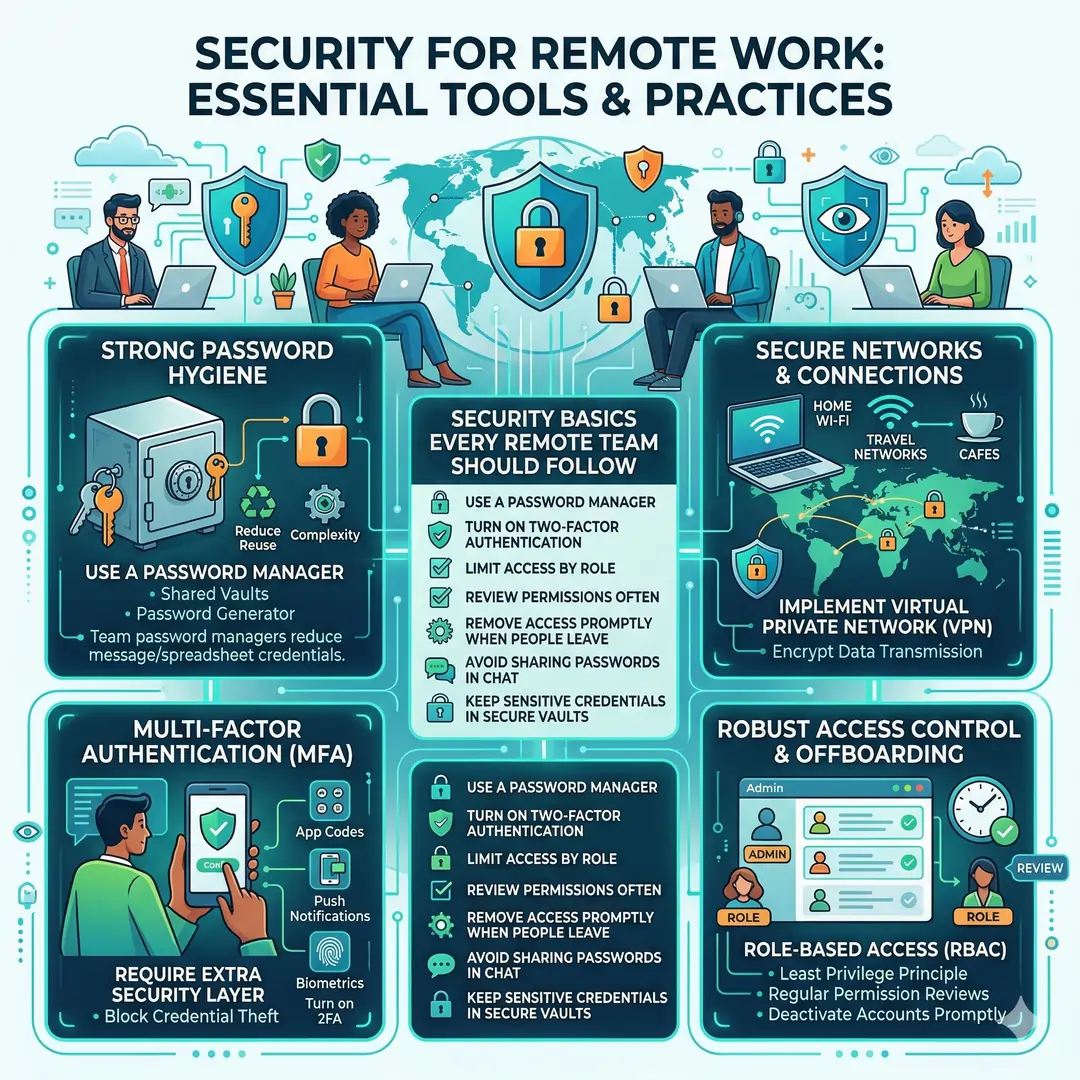
This kind of tool is not glamorous, but it is critical. Weak or reused passwords create avoidable risk, and remote teams often share more systems than they realize. A team password manager reduces the temptation to pass credentials around by message or spreadsheet.
Security basics every remote team should follow
- Use a password manager
- Turn on two-factor authentication
- Limit access by role
- Review permissions often
- Remove access promptly when people leave
- Avoid sharing passwords in chat
- Keep sensitive credentials in secure vaults
Table: Which Tool Type Fits Which Remote Team Needs
| Team need | Best tool type | What to look for | Examples | Why this choice works |
|---|---|---|---|---|
| Quick back-and-forth messages | Chat platform | Channels, search, integrations, notifications | Slack, Google Chat, Zoom Chat | Keeps the team connected without filling inboxes |
| Meetings with clients or teammates | Video meeting platform | Screen sharing, calendar links, notes, clip sharing | Zoom, Google Meet | Let’s teams talk face-to-face when live discussion is best |
| Tracking who does what | Project management | Owners, due dates, progress views, automations | Asana, Trello, monday.com, Todoist | Makes work visible and accountable |
| Keeping processes in one place | Knowledge base | Search, page structure, templates, collaboration | Notion, Confluence | Prevents repeated questions and scattered knowledge |
| Sharing docs and assets | Cloud storage | Version history, permissions, sync, large file support | Google Drive, Dropbox | Stops version confusion and makes file access easier |
| Booking calls fast | Scheduling tool | Availability pages, meeting links, reminders | Calendly | Saves time and reduces timezone friction |
| Brainstorming visually | Whiteboard | Templates, sticky notes, real-time editing | Miro, Zoom Whiteboard | Helps teams think together even when apart |
| Explaining without a meeting | Async video | Screen recording, webcam capture, sharing | Loom | Helps teams work across time zones more smoothly |
| Protecting access | Security platform | Vaults, permissions, secrets, 2FA support | 1Password | Reduces password risk and improves control |
How to Build a Remote Team Tool Stack That Actually Works
A useful remote stack does not need to be huge. It needs to be clear. Many teams do best with one tool for each major job. For example, they may use Slack for communication, Zoom or Google Meet for calls, Asana or Trello for tasks, Notion or Confluence for documentation, Google Drive or Dropbox for files, Calendly for scheduling, Miro for ideation, Loom for async updates, and 1Password for security. Each tool then has a clean purpose.
A simple stack framework
- One chat tool
- One meeting tool
- One project management tool
- One knowledge base
- One file storage system
- One scheduling tool
- One whiteboard
- One async video tool
- One password manager
That structure keeps the team from fragmenting into too many apps. It also makes onboarding easier because new people only need to learn the core system. Slack, Google Workspace, Zoom Workplace, Asana, Notion, Dropbox, Miro, Calendly, Loom, and 1Password all fit naturally into that kind of stack.
Tool Stack Examples by Team Type
| Team type | Best-fit stack | Why it works |
|---|---|---|
| Small startup | Slack, Notion, Trello or Todoist, Google Drive, Calendly, Loom, 1Password | Simple, flexible, and easy to learn quickly, which is useful when the team moves fast and changes often. |
| Creative agency | Slack, Zoom, Miro, Asana, Dropbox, Loom, 1Password | Strong for client communication, asset sharing, visual planning, and feedback. |
| Product or software team | Slack, Zoom, Notion or Confluence, Asana or monday.com, Miro, Google Drive, 1Password | Good for planning, documentation, workshops, and secure collaboration at scale. |
| Global distributed company | Google Workspace, Slack or Zoom Workplace, Confluence, Asana, Dropbox, Calendly, Loom, 1Password | Works well across time zones because it balances live work, async work, knowledge storage, and security. |
What to Look For Before Choosing Any Tool
A remote tool should not just look polished. It should fit the way your team actually works. Here are the most important things to check:
- Ease of use, because a tool that is hard to use will be ignored
- Integrations, so tools can talk to each other
- Search quality, so information is easy to find later
- Permission controls, especially for files and security
- Mobile support, for people working outside a laptop
- Automation features, to reduce repetitive manual work
- AI features, if they genuinely save time rather than adding noise
- Scalability, so the tool still works as the team grows
Modern products increasingly highlight AI, automation, and cross-tool connectivity. Examples include Slack’s workflow builder, Notion AI, Google Workspace with Gemini, Zoom’s collaboration features, monday.com’s AI platform, and Asana’s AI support.
Common Mistakes Remote Teams Make With Tools
Remote teams often fail not because they lack tools, but because they use too many or use them badly. One common mistake is having multiple places for the same kind of information. Another is relying on chat for everything, which makes decisions hard to find later. A third is creating a project tool but never updating it, so the system slowly becomes untrustworthy. Another is skipping documentation and then repeating the same onboarding or process explanations over and over.
Mistakes to avoid
- Using too many communication channels
- Putting final decisions only in chat
- Letting knowledge live in private messages
- Keeping files in personal accounts instead of shared storage
- Booking too many meetings instead of writing updates
- Ignoring security and password management
- Choosing tools based on popularity instead of fit
Loom’s discussion of async work and its caution about too many tools, plus Microsoft’s recent focus on the pressure of modern work patterns, both point in the same direction. Remote work should feel structured, not noisy.
How These Tools Improve Real Work
The strongest remote teams use business tools to support a few important outcomes:
- Faster decisions, because the right people can see the right information
- Fewer misunderstandings, because tasks and docs are visible
- Better onboarding, because knowledge is documented
- More focus, because meetings and interruptions are reduced
- Stronger accountability, because ownership is clear
- Better global teamwork, because async tools bridge time zones
- Safer access, because credentials are managed properly
That is why tools are not just software. They are part of team culture. A team that documents well, communicates clearly, and manages tasks carefully usually feels calmer and more productive than a team that relies on memory and scattered messages. The current mix of chat, docs, whiteboards, async video, and AI-enabled workspaces reflects that shift in how modern organizations operate.
Final Thoughts
The best business tools for remote teams are not the flashiest ones. They are the ones that help people communicate clearly, manage work visibly, store knowledge properly, and protect access securely. In practice, that usually means a blend of communication tools, meeting tools, project management software, knowledge bases, cloud storage, scheduling tools, whiteboards, async video, and security platforms. When chosen carefully, this stack gives a remote team the same kind of clarity and coordination that a shared office once provided, and often even more.
For a worldwide blog audience, that is the most important lesson. Remote work succeeds when the tools remove friction instead of adding it. A well-designed stack gives every team member a better chance to stay informed, stay aligned, and do their best work from anywhere.
Also, Read these Articles in Detail
- Best Business Tools for Small Businesses in 2026
- Top Business Tools Every Startup Needs
- Best Productivity Tools for Modern Teams
Article’s References and Sources
- Microsoft Work Trend Index
https://www.microsoft.com/en-us/worklab/work-trend-index/ - Gallup – State of the Global Workplace Report
https://www.gallup.com/workplace/349484/state-of-the-global-workplace.aspx - Slack Official Website
https://slack.com/intl/en-in - Slack Features Overview
https://slack.com/intl/en-in/features - Zoom Workplace Collaboration Tools
https://www.zoom.com/en/products/collaboration-tools/ - Google Workspace (Collaboration Suite)
https://workspace.google.com/intl/en/ - Asana Official Website
https://asana.com/ - Trello Project Management Use Cases
https://trello.com/use-cases/project-management - monday.com Work Platform
https://monday.com/ - Todoist for Teams
https://www.todoist.com/teamwork - Notion Official Website
https://www.notion.so/ - Notion Wiki Creation Guide
https://www.notion.so/help/guides/how-to-build-a-wiki-for-your-company - Confluence Knowledge Base (Atlassian)
https://www.atlassian.com/software/confluence/knowledge-base - Google Drive (Google Workspace Storage)
https://workspace.google.com/intl/en_in/products/drive/ - Dropbox File Sharing Features
https://www.dropbox.com/features/share - Calendly Official Website
https://calendly.com/ - Calendly Meeting Scheduling Guide
https://calendly.com/scheduling/meetings - Calendly Integration with Microsoft Teams
https://calendly.com/integration/microsoft-teams - Miro Online Whiteboard
https://miro.com/whiteboard/ - Miro Remote Collaboration Tools
https://miro.com/remote-collaboration-tools/ - Loom Official Website
https://www.loom.com/ - Loom – Asynchronous Communication Guide
https://www.loom.com/blog/asynchronous-communication - Loom – Remote Work Strategy Insights
https://www.loom.com/blog/remote-work-strategy - 1Password Official Website
https://1password.com/ - 1Password Enterprise Password Manager
https://1password.com/product/enterprise-password-manager-msp-edition
Frequently Asked Questions (FAQs)
FAQ 1: What are the most essential business tools for remote teams?
The most essential business tools for remote teams are the ones that help people communicate, organize work, share files, store knowledge, and stay secure. In most cases, a remote team needs a strong chat tool, a reliable video meeting platform, a clear project management system, a shared knowledge base, a cloud storage solution, a scheduling tool, and a password manager. These tools work together to create a complete remote workflow.
A remote team does not need dozens of apps to be productive. It needs a simple and connected system. For example, a team may use one tool for daily messages, another for planning tasks, and another for storing documents. When each tool has a clear job, the whole team works with less confusion and fewer delays. That is why the best business tools are not only useful, but also easy to understand and consistent to use.
FAQ 2: Why do remote teams need special business tools instead of just email?
Email is useful, but it is not enough for a remote team. Important work can quickly get lost in long message threads, attachments, and delayed replies. Remote teams need tools that support real-time communication, task tracking, document sharing, and team visibility. Email alone cannot show who is doing what, what is blocked, or what has already been decided.
Special business tools make teamwork easier because they reduce back-and-forth communication. A chat platform can keep quick conversations organized, a project tool can show deadlines and owners, and a knowledge base can store answers in one place. This helps everyone stay informed without needing to search through old emails all day. In a remote environment, that kind of structure is essential for smooth and efficient work.
FAQ 3: What is the best way to choose communication tools for a remote team?
The best communication tools for a remote team are the ones that match the team’s daily habits and communication style. A good tool should make it easy to send quick updates, organize discussions by topic, and search old conversations later. It should also work well across different devices so team members can stay connected from anywhere. Strong features like channels, notifications, search, and integrations are especially important.
It also helps to think about how your team communicates. Some teams need a fast chat system for constant collaboration, while others only need a simple place for updates and announcements. The right tool should reduce noise, not add more of it. A remote team works best when communication is clear, focused, and easy to follow. That is why choosing the right communication platform is one of the most important decisions a team can make.
FAQ 4: How do project management tools help remote teams stay productive?
Project management tools help remote teams stay productive by turning ideas and conversations into clear action steps. They show who is responsible for each task, what the deadline is, and which work is in progress. This matters a lot when people are working from different places and cannot check in face-to-face. A good project tool keeps everyone aligned and makes it much easier to track progress.
These tools also reduce confusion. Instead of asking repeated questions in chat, team members can check the project board or task list to see updates. That saves time and improves accountability. Whether a team uses a visual board, a list view, or a more advanced work system, the main benefit is the same. Project management tools help remote teams stay organized, meet deadlines, and avoid missed work.
FAQ 5: Why is a knowledge base important for remote work?
A knowledge base is important because remote teams need a central place to store information that should not live only in people’s heads. This includes onboarding steps, process documents, team rules, how-to guides, decision notes, and frequently asked questions. Without a shared knowledge base, employees keep asking the same questions, and valuable information gets scattered across messages and files.
A well-organized knowledge base saves time and makes training easier. New team members can learn faster because they can read the same instructions everyone else uses. Existing team members can work more independently because they do not need to wait for someone to explain every detail. In a remote team, this kind of shared knowledge creates consistency and reduces unnecessary interruptions.
FAQ 6: What role do cloud storage tools play in remote team collaboration?
Cloud storage tools play a major role in remote team collaboration because they allow people to access and share files from anywhere. This is especially important for teams that work across time zones or on different devices. Instead of sending large attachments by email, team members can store files in a shared system where everyone can find the latest version easily.
These tools also help prevent version confusion. When multiple people edit documents, designs, or spreadsheets, it is easy to lose track of which file is final. Cloud storage keeps everything in one place and makes collaboration more secure and more reliable. For remote teams, that means fewer mistakes, faster file sharing, and much better teamwork.
FAQ 7: How can scheduling tools improve remote team communication?
Scheduling tools improve remote team communication by removing the back-and-forth that usually comes with booking meetings. Instead of sending many messages to find a time that works, team members can simply view availability and choose a slot. This is especially helpful for teams spread across different cities or countries, where time zones can make planning difficult.
Scheduling tools also make meetings feel more professional and organized. They can automatically add meeting links, reminders, and calendar details, which saves time for everyone involved. For remote teams, this means fewer missed calls, less confusion, and a smoother meeting process. A good scheduling tool is a small change that can make a big difference in daily workflow.
FAQ 8: Why should remote teams use whiteboard tools for brainstorming?
Remote teams should use whiteboard tools because brainstorming is often easier when ideas can be seen visually. A whiteboard helps people map out thoughts, connect concepts, and organize plans in a way that simple chat messages cannot. It is especially useful for strategy sessions, creative planning, product design, and process mapping.
These tools also support teamwork during live meetings or async collaboration. Team members can add notes, move items around, and build ideas together, even if they are not in the same room. That makes brainstorming more active and engaging. For remote teams, a whiteboard tool can bring back some of the visual energy that is often missing from digital work.
FAQ 9: What is asynchronous communication, and why is it important for remote teams?
Asynchronous communication means people do not have to respond at the same time. One person can record a video update, write a message, or leave feedback, and the other person can reply later when they are available. This is very important for remote teams because not everyone works in the same time zone or on the same schedule.
Async communication reduces unnecessary meetings and gives people more freedom to focus. It also creates a written or recorded record of updates, which makes information easier to review later. Tools that support async communication are especially helpful for project updates, training, feedback, and team announcements. For global remote teams, this communication style is often one of the biggest productivity improvements.
FAQ 10: How can remote teams keep their work secure when using digital business tools?
Remote teams can keep their work secure by using strong security tools and following safe digital habits. A password manager is one of the most important tools because it helps teams store login details securely instead of sharing them in messages or spreadsheets. Teams should also use two-factor authentication, limit access to sensitive files, and remove access when someone leaves the company.
Security is especially important in remote work because people often use different networks, devices, and locations. The more distributed a team is, the more careful it must be with access control and account protection. A secure setup protects company data, customer information, and internal systems. It also gives the team more confidence to work freely without putting important information at risk.
